

Webhook Event Filters
Enterprise support
This feature is restricted to customers on the Enterprise plan. Please reach out to your Account Team or contact us if you are interested in enabling and setting up this feature.
Description
Webhook Event Filters allow developers to be more selective with which Events they receive. If the filter is a strict subset of the payload data for an Event, the Webhook Event will go through. Otherwise, the Webhook Event will change to skipped.
Filter key casing
Filters are matched against the Event payload using exact key comparison. If a key in your filter does not match the payload character for character, the filter will never match and every Event will be skipped.
Two different rules decide which key inflection a key appears in, so you need to check both.
Attribute and relationship names
Attribute and relationship names — reference-id, created-at, inquiry-template — always follow the key inflection configured on the webhook, on every API version.
A webhook’s key inflection is set on its Overview tab in the Dashboard, under Key inflection. It is Kebab-case by default, and is configured per webhook — it does not follow the key inflection on your API keys.
The same filter has to be written differently for each setting:
Field names inside fields
Field names inside data.attributes.fields do not always follow the webhook’s key inflection. Which inflection a field name appears in depends on the API version configured on the webhook:
- API version
2025-10-27and later — field names are never key inflected. They appear exactly as they are configured on the Inquiry Template, Case Template, or Transaction Type, which is normally snake_case (address_country_code). - API versions before
2025-10-27— field names on Inquiries, Cases, and Transactions are key inflected, so they follow the webhook’s key inflection (address-country-codeon a Kebab-case webhook). - Account field names are never key inflected, on any API version.
The same field filter is therefore not portable across an API version change:
Rather than converting names by hand, copy the keys straight out of a real Event payload delivered by this webhook — it is already serialized with that webhook’s key inflection and API version. See Designing an event filter below.
Examples
Note that the examples below assume a webhook configured with Kebab-case key inflection!
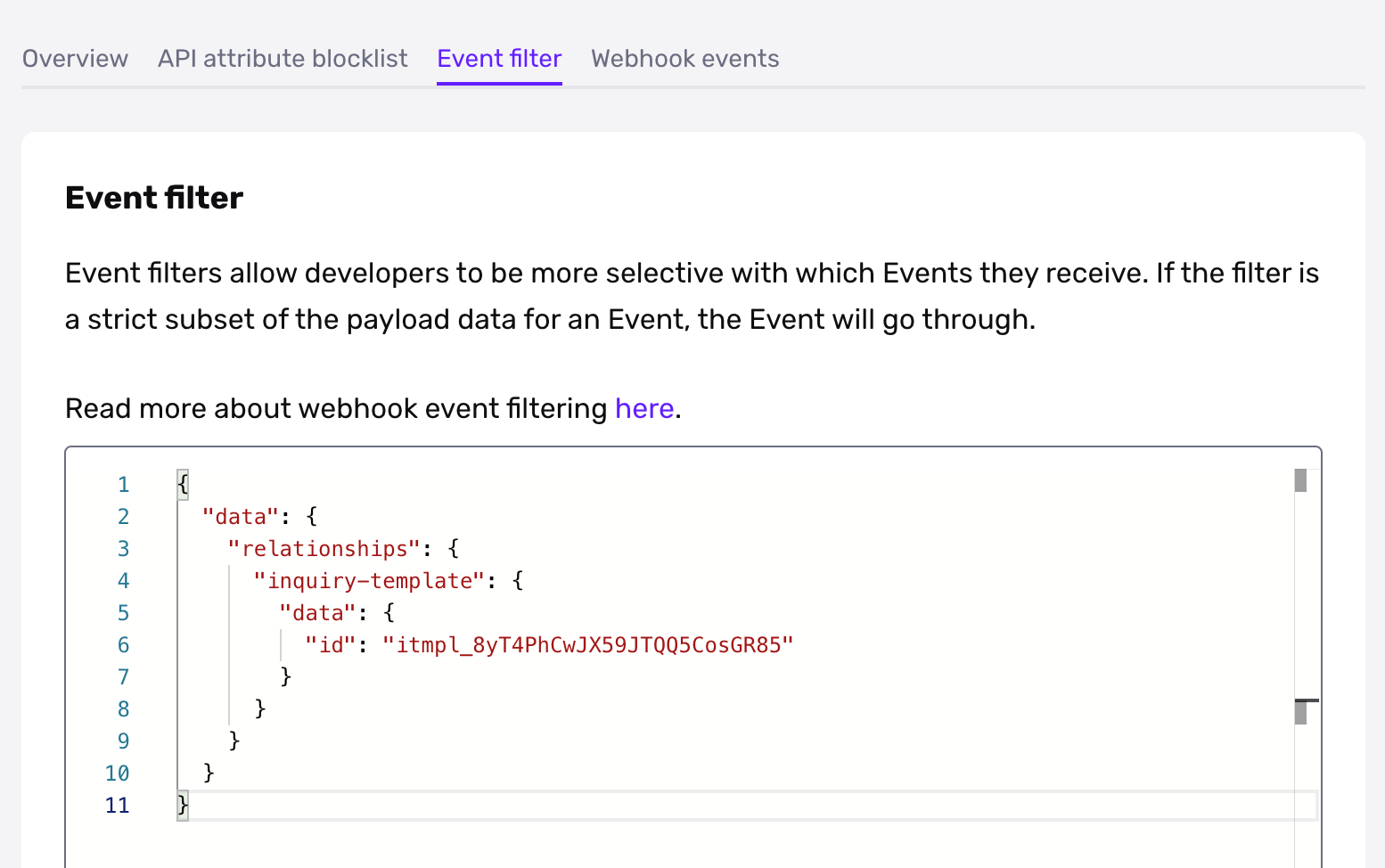
Let’s say that you only want inquiry.completed events that are related to specific Inquiry Templates.
On the Webhook create/edit modal, you’d put in JSON similar to the following:
This would permit an event like the following, ensuring only inquiry.completed payloads associated with the correct template are triggered.
Designing an event filter
This walkthrough uses a payload from a Kebab-case webhook on an API version before 2025-10-27, which is why the field name below reads address-country-code. Always start from a payload delivered by the webhook you are filtering — see Filter key casing.
If you look at the object in the payload of an Event, you might see something like this.
Decide on a particular value that you’re interested in. Let’s say it’s that the Inquiry had a country code of US. You’d then delete everything in the JSON object until only the key/value "value": "US" remained and all of the objects that contain it.
You would end up with the following filter for Inquiries with US addresses.
Matching against arrays
To match against an array in your payload, make an array with the elements you want to check for.
Matching on Inquiries with a tag named “INBOUND” would look like this.
If you wanted to only receive Events with an “INBOUND” and “CAMPAIGN ABC” tags, you’d make the following.
$or operator
To allow for multiple criteria, use the $or operator. It can be used on a list of values or JSON object literals.
Value example:
Hash example:
$or on array fields
When using $or to match against a field whose value is an array (like tags), the $or must be placed at the parent level, not directly on the array field. Each option should wrap the array field with the value(s) to match.
This will not work — $or directly on an array field:
Instead, place $or at the parent level with each option wrapping the array:
This also composes with other filters using AND semantics. For example, to match (tag “US 1” OR tag “CAN 1”) AND (one of several templates):
Key rules for $or:
$oron a scalar field (likeid,status) works directly:{ "id": { "$or": ["a", "b"] } }$oron an array field (liketags) must be lifted to the parent object, with each option as{ "field": ["value"] }- Multiple array values in a single option use AND semantics:
{ "tags": ["US 1", "CAN 1"] }means “has both tags” - Sibling keys at the same level are ANDed together