

API Keys
To access the Persona API, you’ll need an API key. Each environment has its own API key; select the API key for the specific environment you would like to use.
Getting an API key
Sandbox
Sign up to get immediate access to a sandbox API key and start evaluating the API with sample data.
Production
When you’re ready to use the API in production using live data, please contact us.
Already have an account?
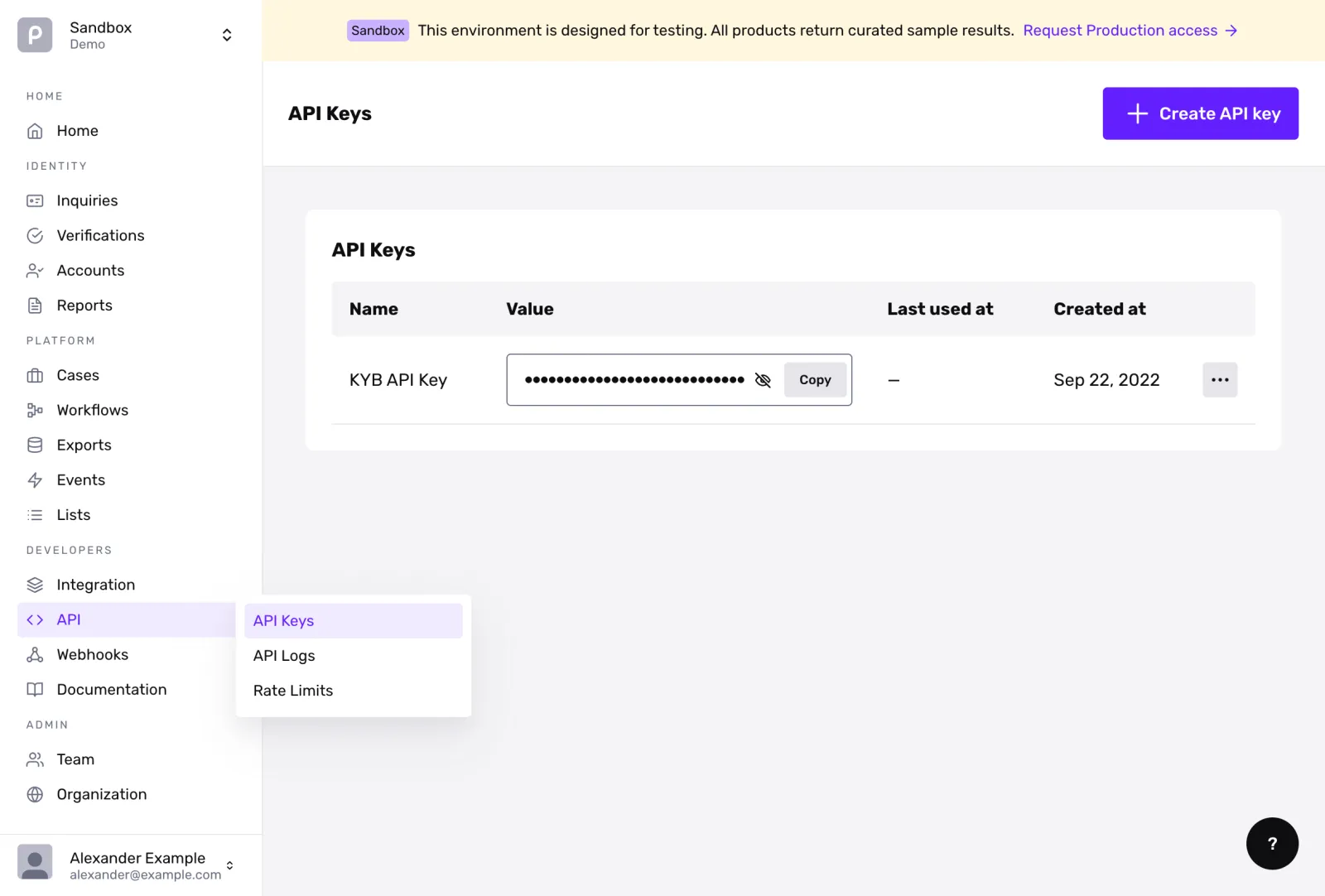
If you already have an account in the Dashboard, you can find your API keys in the API Keys Section.
Dashboard RBAC prerequisites
To view, create, or modify API keys in the Persona Dashboard, your user account must have the built-in Admin role, or a custom role with API Key permissions enabled for the current environment.
If the Generate Key or Create API Key button is disabled or grayed out in your Dashboard:
- Your user role lacks API Key administration privileges.
- Contact an Admin to either generate the required key or elevate your user role under Admin > Team Members.
Dashboard Roles vs. API Key Scopes: Dashboard RBAC roles control what human operators can see and perform in the web interface. API key scopes (documented below) govern the actions that programmatic HTTP requests using your secret token are permitted to execute.
Your API keys carry many privileges, so be sure to keep them secure! Do not share your secret API keys in publicly accessible areas such as GitHub, client-side code, and so forth.
Testing the API
You can test the API resources directly in this reference by providing your production or sandbox API key.
If you click on “Documentation” in the dashboard, the API examples will pre-fill with your sandbox key.
Permissions
Each API key can be configured with specific permissions in order to limit read or write access to specific API resources. This list can change at any time and should not be considered to be exhaustive. You can configure permissions for your API key in the Dashboard by going to API > API Keys > Edit > Permissions.
Scoping and least privilege
To minimize security exposure, follow the principle of least privilege when generating API keys:
- Restrict scopes: Only grant the permissions strictly necessary for your backend service. For example, a service that only generates inquiry links needs
inquiry.writeand does not needaccount.writeorreport.write. - Restrict visible records with Payload Filters:
inquiry.readandinquiry.writeare environment-wide permissions and cannot be scoped to specific Inquiry Templates. If you need to limit which records a key can return, Enterprise customers can configure Payload Filters, which match each record’s serialized response against a filter. Note that payload filters are a response-visibility control, not a write-authorization boundary: non-matching records are omitted from list responses (rather than returning a403), single-resource reads of a non-matching record return403 Forbidden, and filters do not prevent creating records under another template.
Key rotation best practices
To rotate an active API key without incurring production downtime:
- Generate a replacement key: In the Persona Dashboard, open API > API Keys and create a new API key. Use the identical permissions and payload filter, if any, required by your service.
- Deploy the new key: Update your application’s environment configuration or secret manager with the new API key and deploy the update.
- Verify requests in API Logs: Inspect your incoming traffic under API > API Logs to ensure requests from your service are succeeding with the new key token.
- Expire the old key: Once all traffic has migrated to the new key, return to the Dashboard and expire the retired API key.
Troubleshooting common errors
401 Unauthorized
A 401 Unauthorized error indicates Persona could not authenticate the request.
Common causes:
- Missing or malformed Authorization header: Ensure your HTTP request includes the header
Authorization: Bearer <your_api_key>. - Environment mismatch: Sandbox API keys (
persona_sandbox_...) cannot be used against the Production environment, and Production keys (persona_production_...) cannot be used in Sandbox. Ensure the key prefix matches your target environment. - Deactivated or deleted key: The key used in the request may have been revoked or deleted in the Dashboard.
403 Forbidden (insufficient_permissions)
A 403 Forbidden error indicates the API key was authenticated, but lacks permission to perform the requested operation.
Common causes:
- Missing required scope: Review the endpoint’s required permission in this reference (e.g.
inquiry.writeforPOST /api/v1/inquiries) and verify that your API key carries that permission under API > API Keys. - Template or resource restriction: If the API key is restricted to specific Inquiry Templates, attempting to create or fetch an inquiry under a different template ID triggers
insufficient_permissions. - Disabled administrative scopes: Scopes such as
api_key.writeandapi_key.scimare restricted by default and cannot be assigned without administrative enablement.